
24. bluetooth#
本章配套视频介绍:

《15-无线网卡连接WiFi和蓝牙》
https://www.bilibili.com/video/BV1Y24y1A7xH/
如果需要具有蓝牙的能力,可以通过插入USB免驱蓝牙, 或者同时支持蓝牙和wifi的USB或mini-pcie无线网卡,以下是同时支持WiFi和蓝牙的网卡
USB接口:
RTL8821CU
mini-pcie接口:
AX210
RTL8822CE
RTL8852BE
Intel7265
Intel8260
如果遇到其他网卡,插入后无法识别或使用,需要修改内核或者移植驱动。
24.1. 桌面系统配置蓝牙#
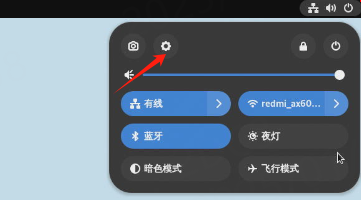
默认蓝牙是打开的状态,点击右上角选项找到蓝牙设置
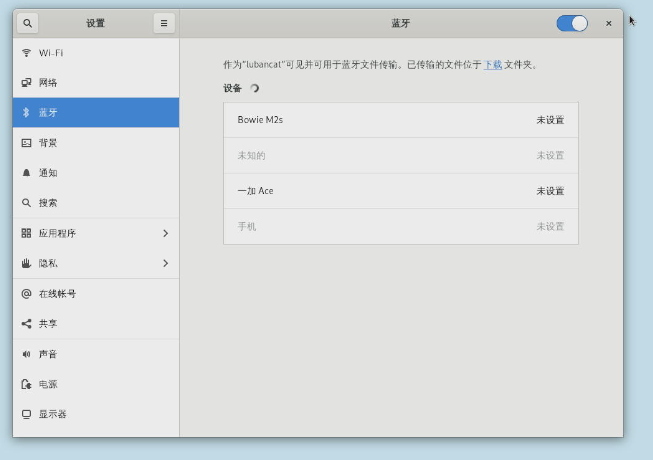
在打开的界面中,找到需要连接的蓝牙设备,然后双击点击即可连接。
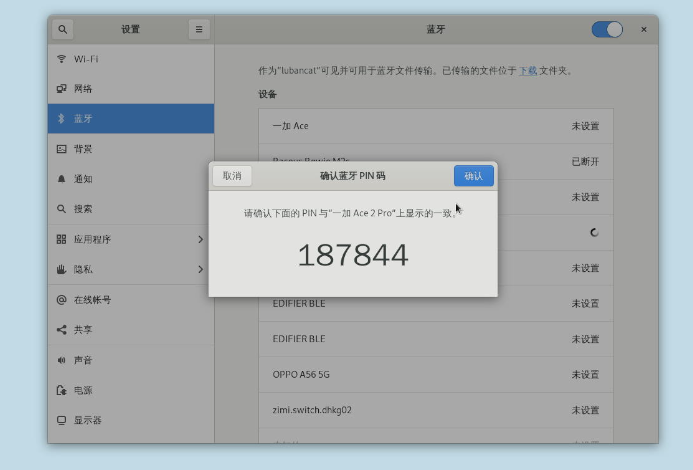
如果连接的设备需要配对,则会弹出PIN码确认窗口,需要板卡和连接的设备都进行确认,确认后即可连接。
24.2. 命令行配置蓝牙#
使用命令行配置蓝牙,我们需要使用工具----bluetoothctl
 1# 进入bluetoothctl命令行
 2bluetoothctl
 3# 进入bluetoothctl命令行后,类似:[bluetooth]#
 4# Controller代表arm板上的蓝牙设备,Device代表蓝牙耳机
 5# 按如下步骤初始化蓝牙设备,并连接蓝牙耳机
 6# 查看帮组
 7help
 8
 9power on
10agent on
11default-agent
12# 启动扫描
13scan on
14# 假如蓝牙耳机地址为:04:8C:9A:F2:54:4B
15trust 04:8C:9A:F2:54:4B
16# 配对
17pair 04:8C:9A:F2:54:4B
18# 连接
19connect 04:8C:9A:F2:54:4B
20
21# 查看蓝牙耳机信息
22info 04:8C:9A:F2:54:4B
23
24# 断开连接
25disconnect 04:8C:9A:F2:54:4B
26# 不想自动连接上蓝牙耳机,可以删除配对信息
27remove 04:8C:9A:F2:54:4B
更多关于命令行蓝牙连接,可参考 https://blog.csdn.net/chenjk10/article/details/90317028
24.3. 关闭蓝牙验证#
默认开启蓝牙连接验证,如果需要关闭验证可以操作以下步骤:
安装工具包:
1sudo apt update
2sudo apt install bluez util-linux
新建/usr/lib/systemd/system/bt-agent.service 写入以下内容:
 1[Unit]
 2Description=Bluetooth Auth Agent
 3After=bluetooth.service
 4PartOf=bluetooth.service
 5
 6[Service]
 7Type=simple
 8ExecStart=/usr/bin/bt-agent -c NoInputNoOutput
 9User=root
10
11[Install]
12WantedBy=bluetooth.target
最后启动服务,添加到系统自启动服务中
1sudo systemctl start bt-agent
2sudo systemctl enable bt-agent